Events
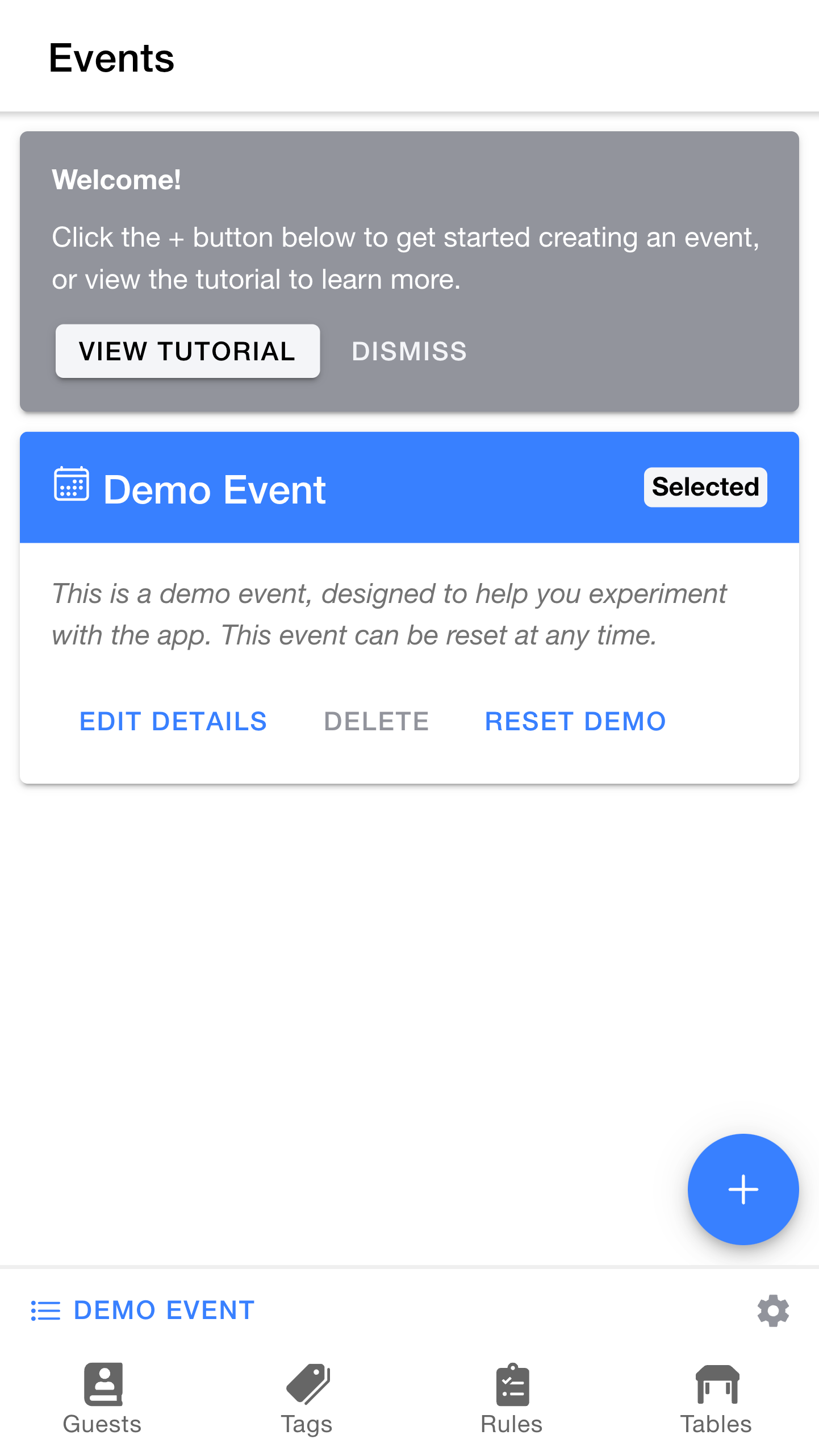
When you first start the app, you will be taken to the
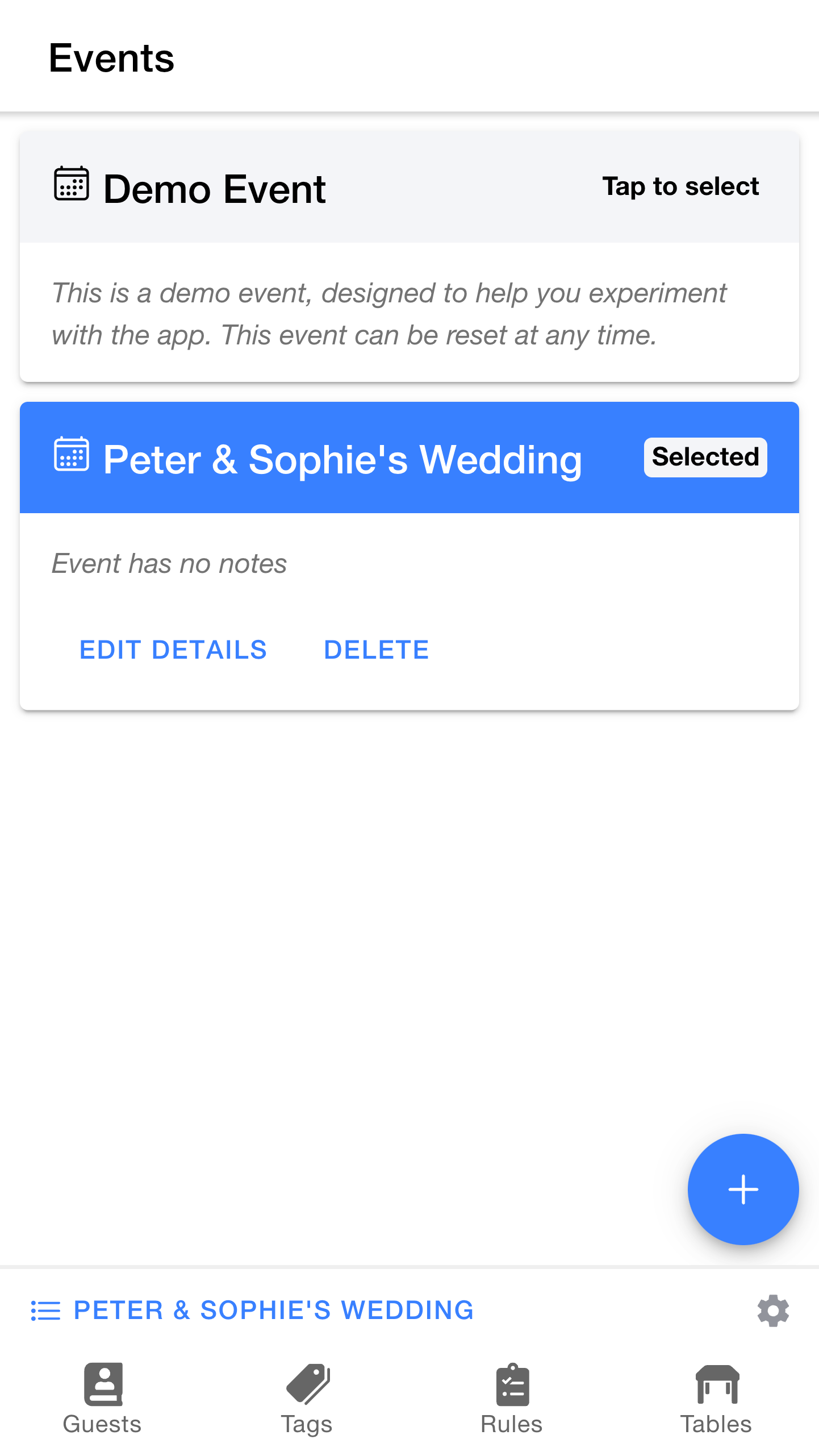
This page shows a list of our events. Table Tailor comes pre-loaded with a demo event, which is selected when you first install the app. You can experiment with this event, or get started straight away by creating your own event. In fact, the demo event is actually an expanded version of what we'll be creating in this tutorial.
Tip: The demo event can be reset to its initial state at any time by pressing the
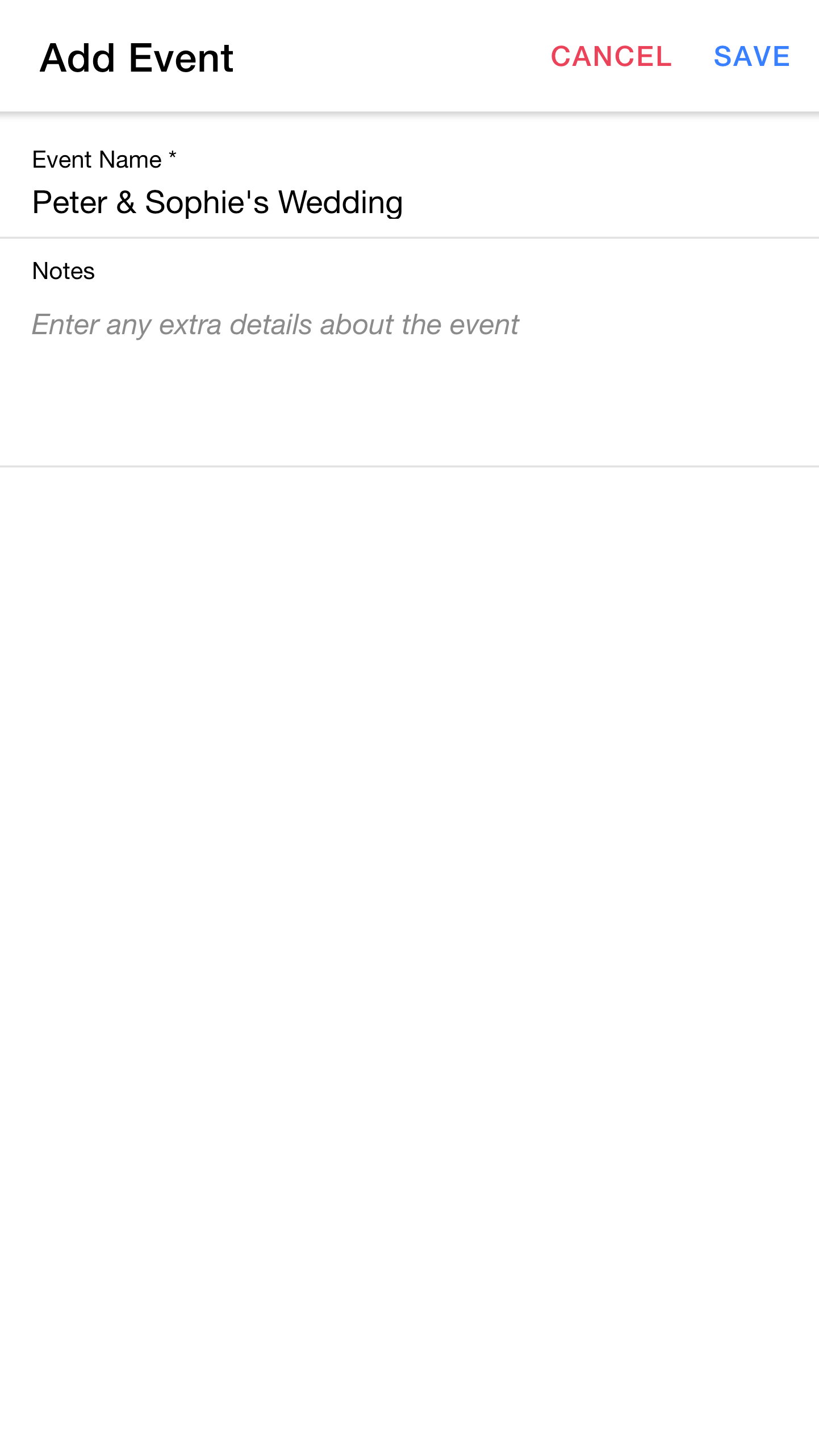
Let's start by creating a new event.
If required, you can use the
Tip:
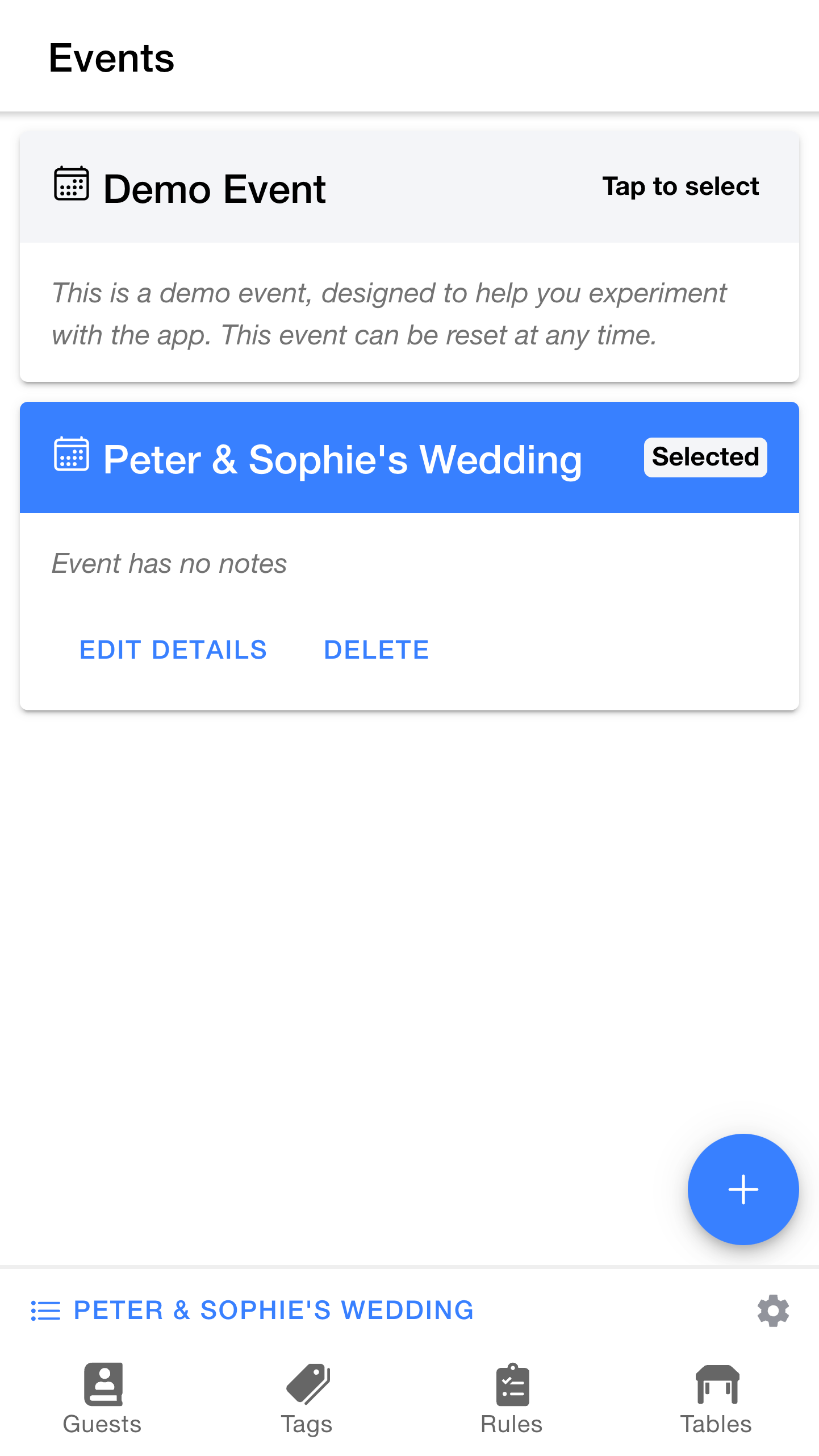
Our new event now shows up in the
If you need to make changes to your events, you can use the
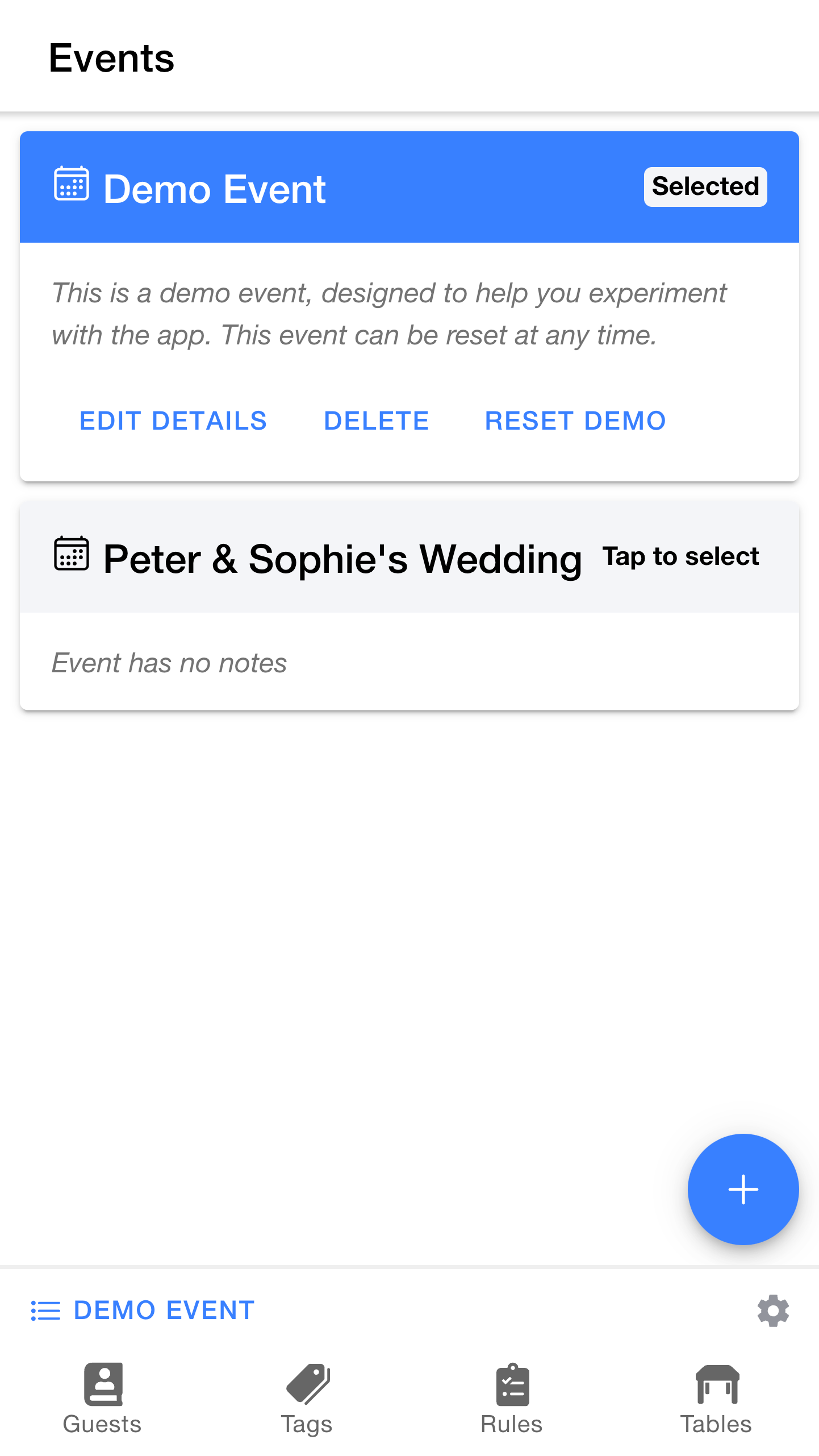
Table Tailor lets you work with multiple events, each with separate guest lists, tables and seating plans.
At any given time, there is one active (or selected) event, which controls what information is shown across the app. You can switch between events at any time. Let's see how to do that.
Notice that the
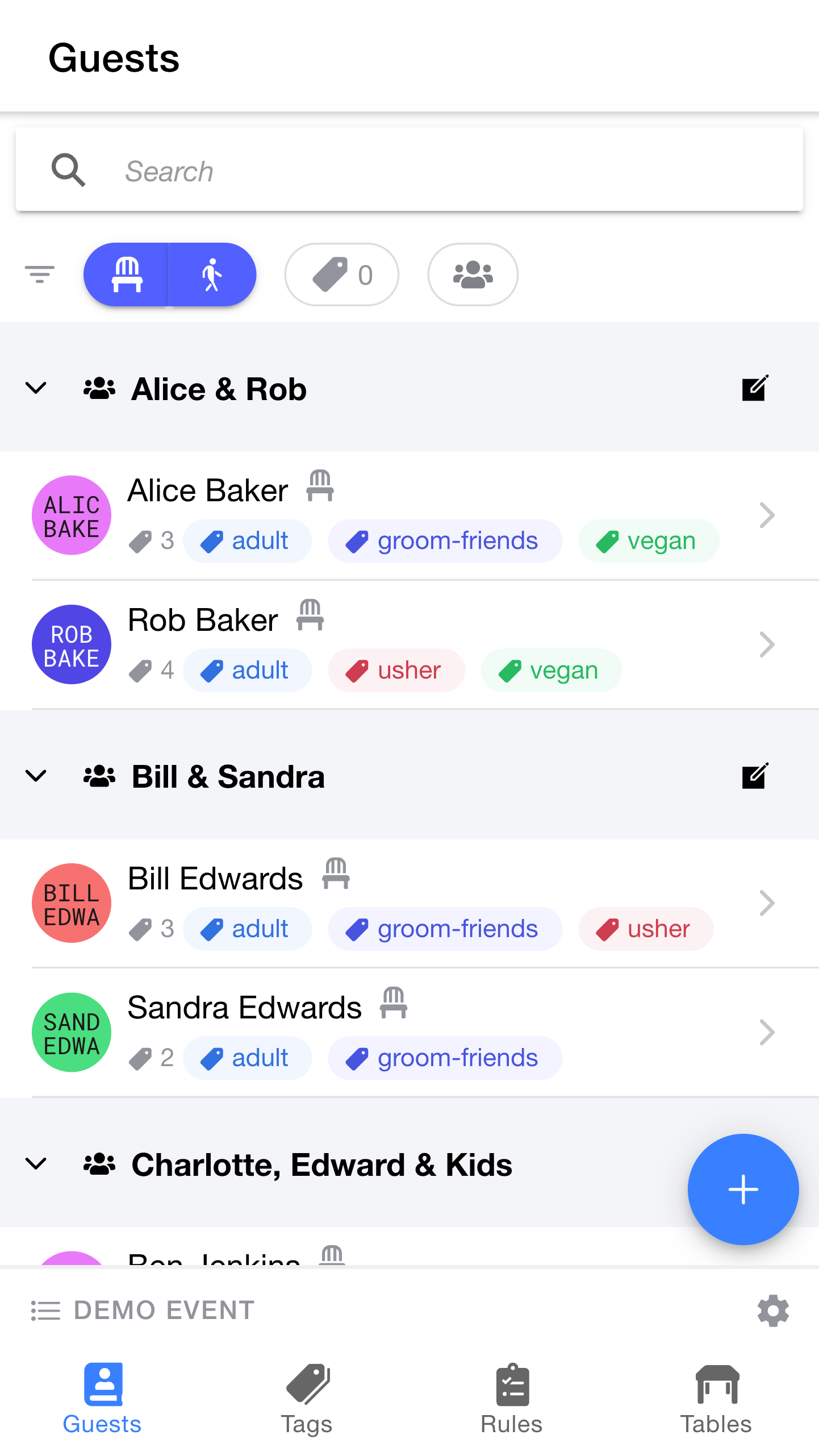
We'll learn more about the guest list shortly, but for now the main thing to notice is that this is full of information from the demo event.
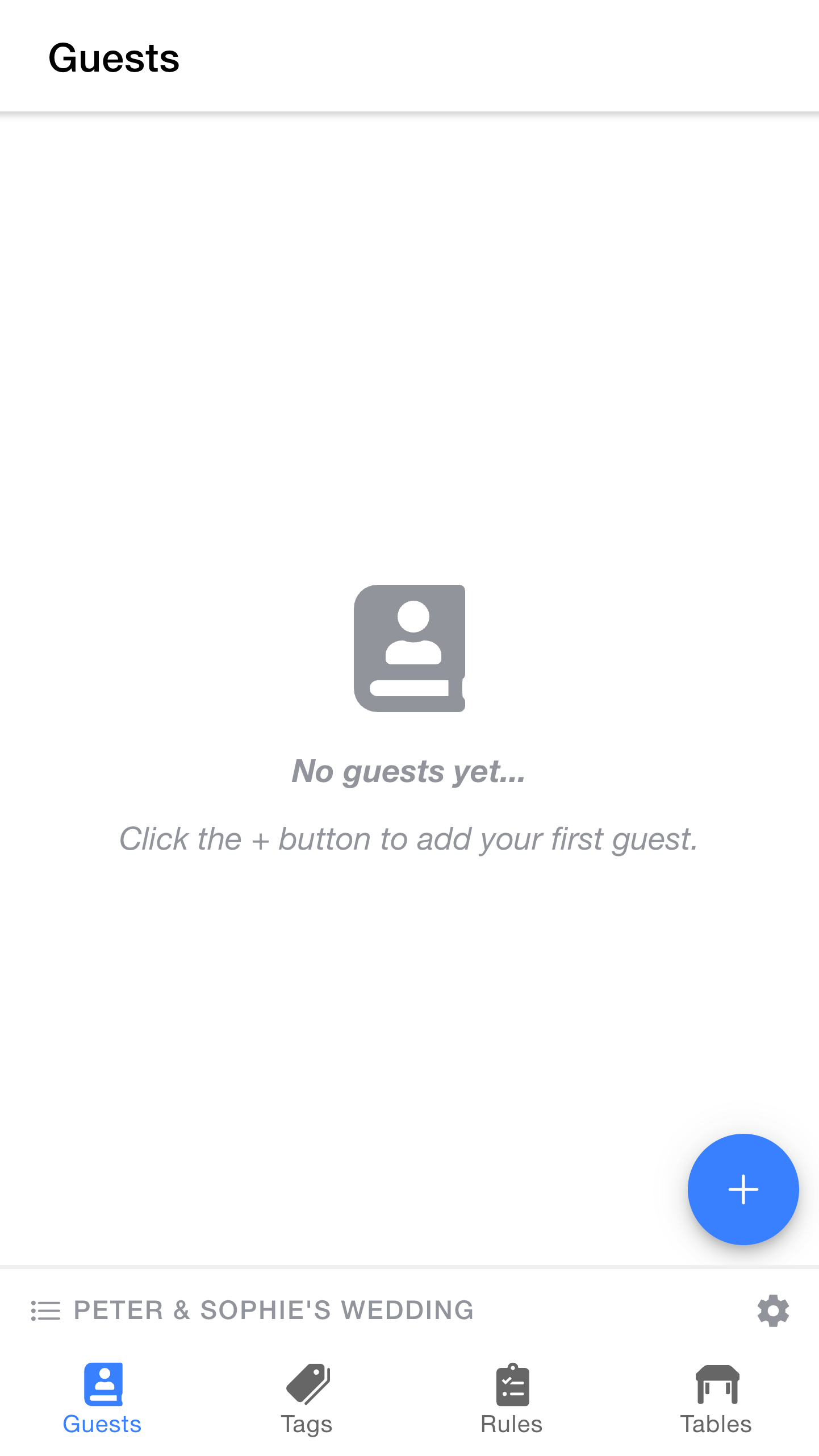
As you can see, the guest list for